

Send Creators from a Pool
The Use this Pool menu sends a pool’s creators to the place they work next. You choose who goes, and then choose where.
Explore how to send a pool’s creators on.
Before you start
Make sure you have:
- A saved pool. Use this Pool appears in the top bar once Fohr has saved the pool, which happens on your first edit.
- Shortlisted creators in that pool, the ones you plan to send.
How to send creators
Do these steps in order. The switch you choose first decides who goes in every action after it.
Open the menu and choose who goes
Select Use this Pool in the top bar. At the top of the menu, a Shortlisted only switch sits beside the creator count, for example All 4 creators. Leave it off to send every creator in the pool. Enable it to send only the creators you shortlistedA creator you shortlist stays in the pool, even when they stop matching your criteria..
Choose where they go
Select one of the six actions. The following image shows the menu, and the table lists when to choose each action.
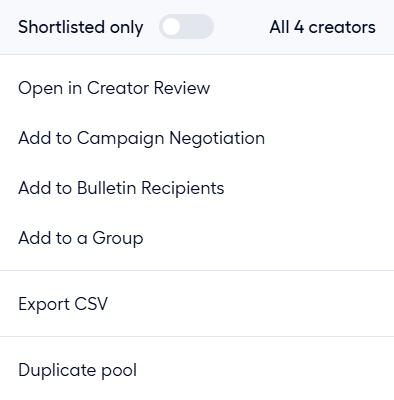
| Action | Choose it when |
|---|---|
| Open in Creator Review | A brand has to compare and approve the creators before they work. |
| Add to Campaign Negotiation | The creators are ready for a campaign’s offer. |
| Add to Bulletin Recipients | You want a bulletinAn open opportunity a brand posts for creators to apply to. to reach a target list of creators. |
| Add to a Group | You need a fixed copy of the list that stops changing. |
| Export CSV | You need the list outside Fohr. Fohr sends you a download link. |
| Duplicate pool | You want a copy to adjust while the original stays as it is. |
Each of the first four actions opens a dialog. The following sections describe each one.
Open in Creator Review
The dialog reads Add all 4 creators to a new review, or pick an existing one. It offers two routes.
| Route | How it works |
|---|---|
| New review | Under CREATE A NEW REVIEW, a title field starts with the pool’s name. Edit it and select Create & open. |
| Existing review | Search the list, which shows TITLE, CREATORS, and CREATED. Tick a review and select Add & open review. |
Create & open opens the new review in Build. Every creator sits in the Top PicksThe Creator Review lane that holds the lineup you propose to the brand. It is not a pool lane. laneOne of the two places a creator sits in a section, Top Picks or Alternates. and in UnassignedWhere Creator Review keeps creators you have not placed in a section., and the review starts unlinked, so the page offers Link campaign and Link bulletin. Round 1A published lineup the brand can see. The first one you send is Round 1. reads Not sent, and the brand sees nothing until you push a roundA published lineup the brand can see. The first one you send is Round 1..
Organize the creators into sectionsA named group of creators in a review, such as one campaign category. next. See Build a Creator Review.
Add to Campaign Negotiation
The dialog reads Add all 4 creators to a campaign’s negotiation. Search for a campaign or narrow the list with the Brand selector. The table shows each campaign’s NAME, STATUS, and CREATORS count. Tick a campaign and select Add creators. The button stays disabled until you tick one.
Add to Bulletin Recipients
A dialog lists bulletinsAn open opportunity a brand posts for creators to apply to. with a Brand selector. The table shows each bulletinAn open opportunity a brand posts for creators to apply to.’s NAME and its number of RECIPIENTS. Choose a bulletinAn open opportunity a brand posts for creators to apply to. to add the creators as its recipients.
Add to a Group
The dialog reads Add all 4 creators to a new group, or pick an existing one. Under Select existing groups, choose a group, and then select Add to group.
A group is a static list. It keeps the creators you added and does not change when the pool does.
Export CSV
Fohr builds the file in the background, so Export CSV does not download anything at once. Follow these steps:
- Choose who goes with the Shortlisted only switch. With it on, the file holds only your shortlistedA creator you shortlist stays in the pool, even when they stop matching your criteria. creators.
- Select Export CSV. A short message reads CSV export started. You will receive a notification with the download link when ready.
- Open Notifications and find Pool CSV Export Ready. Select Download CSV. The link expires in 7 days.
The file has one row per creator. It holds the creator’s name, gender, email, location, and Fohr profile, their followers, links, and engagement on each platform, and who follows them on Instagram and TikTok, by gender, ethnicity, age, cities, and countries. A cell stays empty when Fohr has no value for that creator.
Troubleshooting
The following questions come up when you send creators:
Export CSV did not download a file #
Fohr sends the file as a notification, not as a download. See Export CSV. If the link expired after 7 days, select Export CSV again.
Use this Pool is missing #
Fohr has not saved the pool yet. Make your first edit, such as adding a criterion, and Use this Pool and Pool actions appear in the top bar.
Related articles
Pool
How Pool works, from pools and lanesOne complete definition of the creators you want. A creator must match every criterion in the lane. to the shortlistA creator you shortlist stays in the pool, even when they stop matching your criteria. and the override rules.
Shortlist and Exclude Creators
ShortlistA creator you shortlist stays in the pool, even when they stop matching your criteria. and excludeA creator you exclude stays out of the pool, even when they match every criterion. creators, undo either one, and act on several at once.
Build a Creator Review
Create a review, add creators, and organize them into sectionsA named group of creators in a review, such as one campaign category. and lanesOne of the two places a creator sits in a section, Top Picks or Alternates..