

Read a Pool's Results
The results show every creator who matches your pool criteriaOne condition a creator has to meet, such as Location or Profession.. Use the creator cards to understand who is in the pool and why they match. The toolbar lets you sort the results and change how they appear.
This page covers how to open a creator’s panel, review pool demographics, switch between grid and table views, and browse posts in Content modeA mode that shows creators' posts from the last 12 months instead of their profiles..
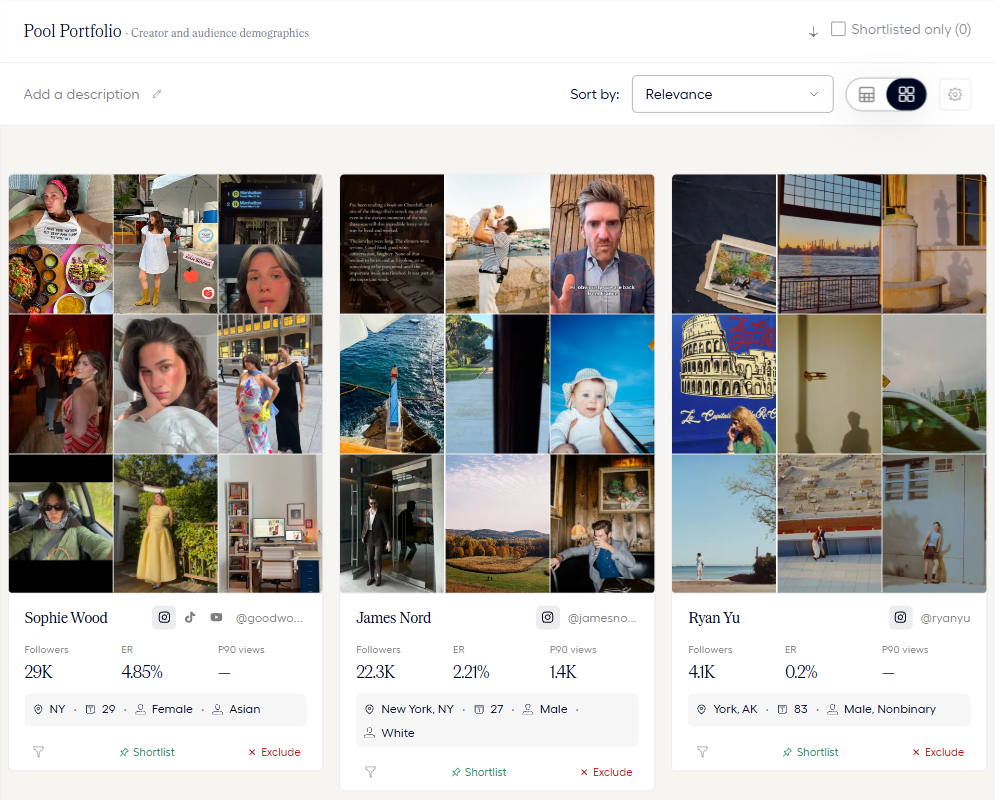
The following image shows the Pool PortfolioThe bar that summarizes the creators in your pool. Select it to open the demographics tabs. bar, the toolbar, and creator cards in grid view.
Before you start
Open a pool that lists creators in the editor.
Creator cards
In grid view, each creator card displays:
- A photo mosaic of the creator’s content.
- The creator’s name, handle, and platform icons.
- Followers, EREngagement rate., and P90 viewsThe cautious views estimate. Fohr gives a 90% chance of reaching at least this many views. for the selected platform.
- ER is the engagement rate per view.
- P90 views is a conservative forecast: there is a 90% chance that a post will reach at least this number of views.
- The creator’s location, age, gender, and ethnicity.
- A funnel icon, Shortlist, and Exclude.
Why this creator matches
Hover over the funnel icon on a creator card or table row to open Why this creator matches.
The popoverThe small box that opens when you hover over the funnel icon. It shows why a creator matches. shows:
- Matched criteria: Each criterionOne condition a creator has to meet, such as Location or Profession. the creator meets, such as Are called with the creator’s name or Have posted about with a keyword.
- Lane qualification: How many lanesOne complete definition of the creators you want. A creator must match every criterion in the lane. the creator qualifies for, when the pool has multiple lanesOne complete definition of the creators you want. A creator must match every criterion in the lane.. For example, Qualifies for 2 of 2 lanes.
- Shortlisted: Appears at the top when the creator is on your shortlistA creator you shortlist stays in the pool, even when they stop matching your criteria..
Creator panel
Select a creator card or row to open their panel beside the results.
The panel includes:
- Navigation: Use the arrows to move to the previous or next creator. Select X to close the panel.
- Creator details: View the creator’s name, location, gender, and ethnicity. Use Shortlist or Exclude to update their status without returning to the results.
- Platform statistics: Each platform has its own section with metrics such as FOLLOWERS, P90 VIEWSThe cautious views estimate. Fohr gives a 90% chance of reaching at least this many views., and EREngagement rate..
- Content: The CONTENT heading shows the number of posts available, for example, CONTENT (34). Hover over a post to preview it in full, or select View all to see every post.
When the pool uses a keyword criterionOne condition a creator has to meet, such as Location or Profession., posts that match the keyword appear first.
Pool Portfolio
The Pool Portfolio bar summarizes the creators in your pool. Select it to open the demographics tabs:
- Creator Demographics: Shows information about the creators in the pool.
- Audience Demographics: Shows information about their audiences.
Switch between Instagram and TikTok to view platform-specific data. The figures include median and average engagement and viewership, follower tiers, gender, and race.
The bar also shows how many creators the figures cover, for example 3 of 4 creators.
View shortlisted creators only
Select Shortlisted only to calculate the figures using only your shortlistedA creator you shortlist stays in the pool, even when they stop matching your criteria. creators.
This setting does not change the creator cards. The checkbox remains disabled until at least one creator is shortlistedA creator you shortlist stays in the pool, even when they stop matching your criteria..
Arrange the results
Use the toolbar to change how you view and organize the results. These settings do not change which creators match your criteriaOne condition a creator has to meet, such as Location or Profession..
Sort by
The Sort by menu opens with Relevance selected. This option puts creators who best match your criteriaOne condition a creator has to meet, such as Location or Profession. first.
Use the search field in the menu to find another sorting option.
| Option | What it sorts by |
|---|---|
| Relevance | How well creators match your criteriaOne condition a creator has to meet, such as Location or Profession.. This is the default. |
| Instagram followers, TikTok followers | Follower count on the selected platform. |
| Avg engagement, IGInstagram. engagement, TTTikTok. engagement | Average engagement, Instagram engagement, or TikTok engagement. |
| IGInstagram. predicted views (P50), TTTikTok. predicted views (P50) | Predicted viewsFohr's forecast of the views a creator's posts will get. on Instagram or TikTok, using the P50The middle estimate of a creator's predicted views. middle estimate. |
| IGInstagram. predicted views (P90), TTTikTok. predicted views (P90) | Predicted viewsFohr's forecast of the views a creator's posts will get. on Instagram or TikTok, using the P90The cautious views estimate. Fohr gives a 90% chance of reaching at least this many views. conservative estimate. |
Content mode has a different set of sorting options. See Content mode.
Grid and table views
Use the switch beside Sort by to change between grid and table views.
- Grid view: Displays creators as cards with their photos and key statistics.
- Table view: Displays one row per creator, with columns for CREATOR, SOCIALS, GENDER, ETHNICITY, and LOCATION, followed by Instagram (IG) and TikTok (TT) followers, P90 VIEWSThe cautious views estimate. Fohr gives a 90% chance of reaching at least this many views., and ENG%Engagement rate..
Each table row also includes the funnel icon, pin, X, and a checkbox. Use the checkboxes to select multiple creators and take action on them together. See Act on several creators at once.
View settings
Select the gear icon beside the grid and table switch to open View settings. These options change how the results appear, not which creators are in the pool.
| Setting | Description |
|---|---|
| Single hero image | Shows one image per creator instead of a photo mosaic. Available in grid view only. |
| Primary platform | Sets which platform’s statistics appear first on each card. You can still switch platforms on individual cards. |
| Predicted views | Sets the baselineThe percent chance Fohr gives of reaching at least the projected views. P90 is the cautious reading and P50 is the expected one. for predicted viewsFohr's forecast of the views a creator's posts will get.. The default is P90 Conservative, the more cautious estimate. The selected baselineThe percent chance Fohr gives of reaching at least the projected views. P90 is the cautious reading and P50 is the expected one. appears on the card. |
Select Reset to defaults to restore the settings to their starting values.
Content mode
Enable Content mode in the top bar to browse creators’ posts instead of their profiles.
The results become a feed of posts from all creators in the pool, covering the last 12 months. The feed is labeled Last 12 months.
Each post displays:
- The creator’s name.
- The post type and date.
- The caption.
- The number of views.
Scroll down to load more posts.
Sort posts
In Content modeA mode that shows creators' posts from the last 12 months instead of their profiles., the Sort by menu offers these options:
- Newest: Shows the most recent posts first.
- Most views: Shows posts with the highest view counts first.
- Most likes: Shows posts with the most likes first.
- Highest engagement: Shows posts with the highest engagement first.
Content modeA mode that shows creators' posts from the last 12 months instead of their profiles. changes only how you browse the results. It does not change the pool criteriaOne condition a creator has to meet, such as Location or Profession., and Save remains disabled while Content modeA mode that shows creators' posts from the last 12 months instead of their profiles. is active.
Disable Content mode to return to the creator cards.
Related articles
Pool
How Pool works, from pools and lanesOne complete definition of the creators you want. A creator must match every criterion in the lane. to the shortlistA creator you shortlist stays in the pool, even when they stop matching your criteria. and the override rules.
Build a Pool
Create a pool, add criteriaOne condition a creator has to meet, such as Location or Profession., and choose how each criterionOne condition a creator has to meet, such as Location or Profession. matches.
Shortlist and Exclude Creators
ShortlistA creator you shortlist stays in the pool, even when they stop matching your criteria. and excludeA creator you exclude stays out of the pool, even when they match every criterion. creators, undo either one, and act on several at once.
Send Creators from a Pool
Open creators in Creator Review, add them to a campaign, bulletinAn open opportunity a brand posts for creators to apply to., or group, or export them.