

Creator Review
Creator Review is the workspace where you assemble a lineup of creators, put it in front of a brand for approval, and hand it off to the campaign or bulletin you chose them for. It runs as a tool of its own, so a review can exist before a campaign does, and you can connect the two later.
Each task has its own page, listed under Where to start.
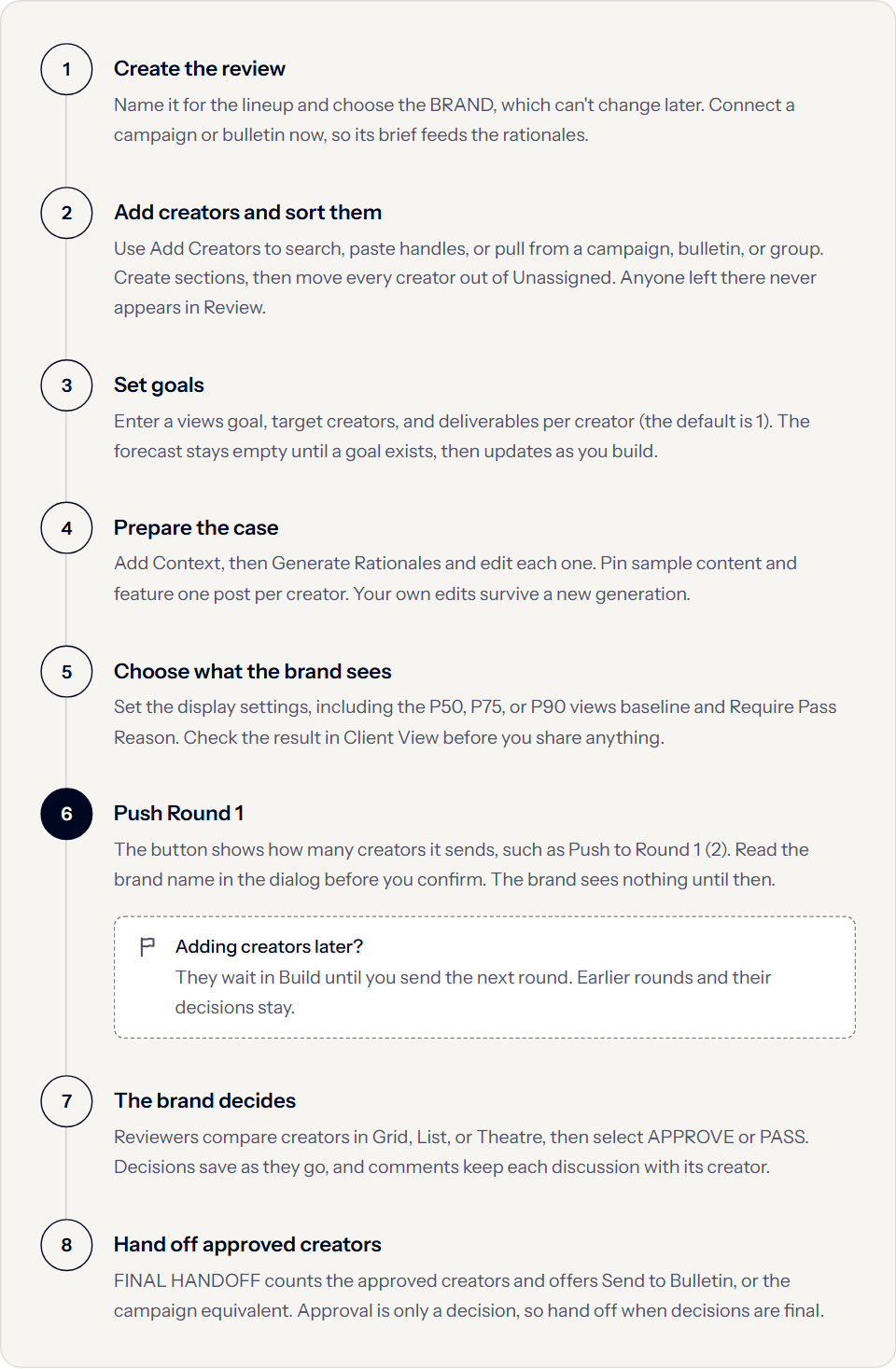
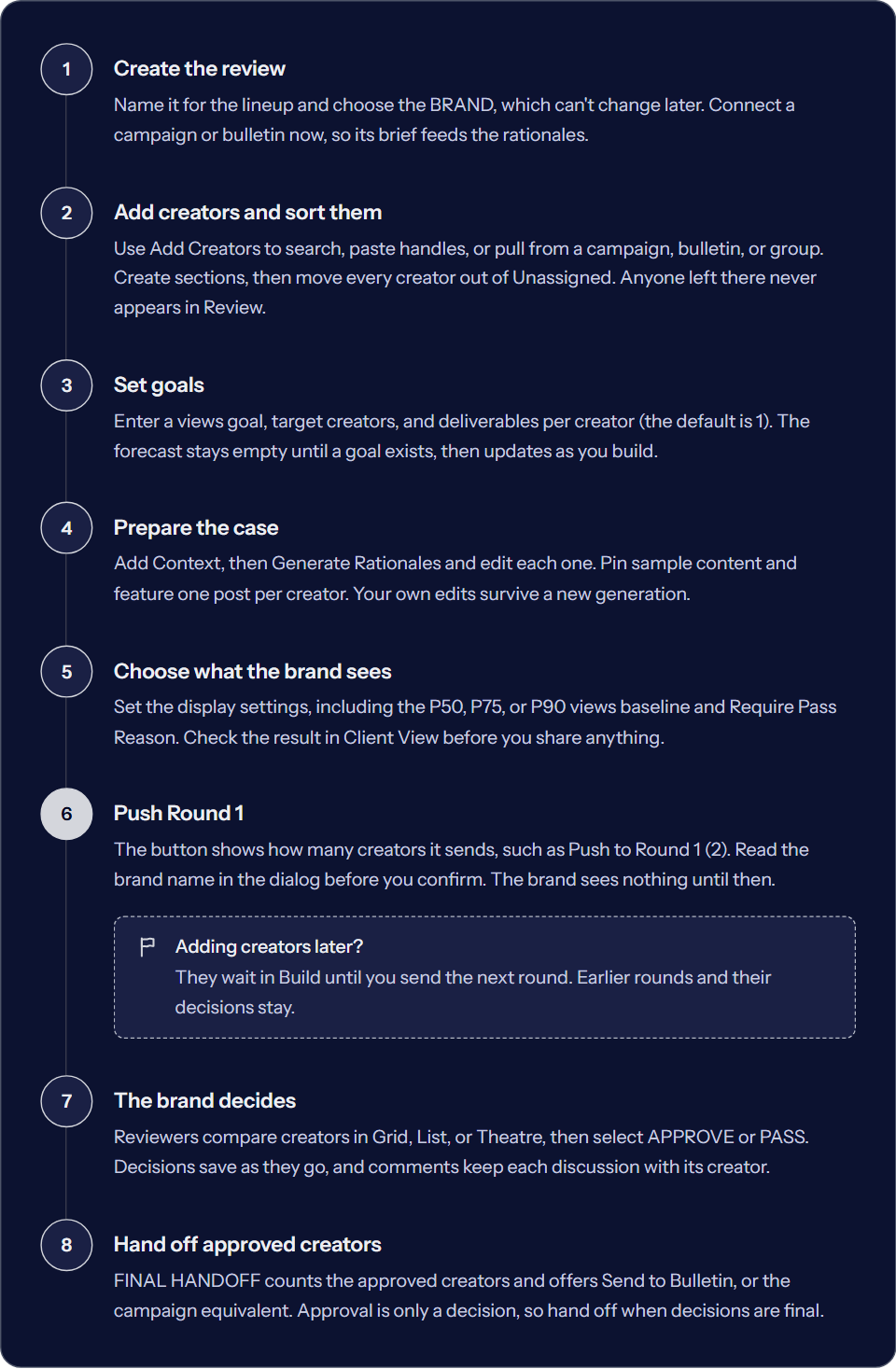
The following diagram shows the whole flow, from creating a review to handing off the creators a brand approves.
Build and Review
A review is one list of creators you work through in two modes, and the Build and Review switch at the top moves between them.
| Mode | What happens there | Who reaches it |
|---|---|---|
| Build | Assemble the roster, organize it into sections, give it a goal, and prepare it for reading. | Fohr team only. |
| Review | Compare creators, discuss them, and decide. | Fohr team and the brand. |
Review is a different route from Build, so a review’s address changes with the mode. Opening Review as an admin publishes nothing. Client View shows the same screen without the admin-only controls, which is what the brand actually sees.
Brands and connections
Every review belongs to exactly one brand, which you set when you create the review and cannot change afterward. A different brand’s users cannot open it.
A review can also connect to one campaign or one bulletin, and that connection does two things: it makes the campaign’s brief the context behind generated rationales, and it decides where approved creators go at handoff.
A connection does not mean the creators in the review have entered campaign negotiation or cleared approval on the bulletin. Approval records a decision, and handoff is a separate deliberate action.
Sections and lanes
You organize a lineup into sections, name each one for a category the campaign cares about, and set each one to Instagram, TikTok, or Any Platform. That platform decides which statistics the section’s creators show, and Any Platform shows both.
Within a section, every creator sits in one of two lanes.
| Lane | What it means |
|---|---|
| Top Picks | The lineup you are proposing. These are the creators the forecast counts. |
| Alternates | Backups, ready if the brand passes on a top pick. An empty lane reads “Backups land here.” |
Creators you have not placed yet sit in Unassigned.
A creator in Unassigned never appears in Review. This holds even after you publish the round carrying them, and even with the Unassigned Creators display setting enabled. Being in a section is what makes a creator reachable by a reviewer.
What the forecast reports
The forecast projects what the current roster will deliver against the goal you set, and it updates as you add creators, move them, and decide on them.
The following table covers what each figure means:
| Figure | What it reports |
|---|---|
| PREDICTED VIEWS | What the current roster projects it will deliver, labeled with the baseline behind it, for example PREDICTED VIEWS · P75. |
| TOP PICKS | How many creators sit in the Top Picks lane, against the target creator count. |
| GOAL CONFIDENCE | How likely the whole proposed lineup is to reach the views goal. |
| CONFIDENCE FLOOR | The same calculation counting only creators the brand has already approved. It is the safe number, and it rises as decisions arrive. |
Goal confidence and confidence floor differ only in which creators they count. If the views goal is 100,000 and 10 top picks project 100,000 between them, goal confidence counts all 10, while confidence floor counts only the ones the brand has approved so far. Both stay empty until a views goal exists, and the review’s list card reads no goal until then.
Predictive views run on a selectable baseline, P50, P75, or P90. A lower baseline is the more optimistic reading, so comparisons between reviews only mean something at the same baseline.
Fohr is still revising the wording on GOAL CONFIDENCE and CONFIDENCE FLOOR, which read as the same measure at a glance.
Rounds
A round is a published lineup. The first one you send becomes Round 1. Until you send it, the brand sees nothing at all.
After a round is live, creators you add to the review stay queued in Build, which is what lets you keep preparing a lineup without exposing unfinished additions. Sending the next round publishes them, labeled as new. Earlier rounds and their decisions stay in the review, so a new round adds rather than replaces.
How a creator appears
Each creator carries the case you built for them in Build: the rationale under WHY THIS CREATOR, pinned examples under SAMPLE CONTENT, their tags, and statistics labeled per platform. A creator with no account on a platform reads TikTok not connected or its equivalent, which is a missing connection rather than zero performance.
Sample content applies inside the review only and never changes the creator’s own profile. Tags are a Fohr team function: the brand sees and filters by them, and cannot add them.
Comments and notes
Both attach to a creator and they do different jobs.
| Type | What it is | Who writes it |
|---|---|---|
| Comment | A thread. The Fohr team and the brand discuss a creator back and forth, keeping the exchange on the platform instead of in email. | Both. |
| Note | A single note per creator, which a new note replaces rather than adds to. It holds a standing fact about working with someone, not a discussion. | Fohr team. |
Nothing in a creator review notifies the creator, and creators have no access to it at all.
Where to start
The following pages each cover one task.
Build a creator review
Create a review, add creators, and organize them into sections and lanes.
Set goals and read the forecast
Set the views goal, target creators, and deliverables per creator, then act on what the forecast reports.
Prepare rationales and sample content
Add review context, generate and edit rationales, and curate the sample content a brand sees.
Customize the client view
Choose what a brand reviewer sees, require a reason for passes, and confirm who has access.
Share rounds and hand off approved creators
Publish a round to the brand, send later additions, and move approved creators downstream.
Review creators
Compare creators, discuss them with the brand, and record approvals and passes in Review mode.