

Bulletins
Brands use Bulletins to reach multiple creators at once for paid partnerships, gifting opportunities, event RSVPs, or survey feedback. Responding takes only a few minutes.
Explore a full response, from the invitation to the confirmation:
Before you start
You need an active Fohr creator account to respond. You can create your Fohr account beforehand or while applying.
Bulletin types
Brands choose one of four Bulletin types based on their campaign goals:
| Type | Brand goal |
|---|---|
| Survey | Collect creator insights and feedback |
| Opportunity | Gauge interest in a partnership |
| Gifting | Collect shipping details to send products |
| Event | Confirm guest list placements |
How to access a Bulletin
Three entry points open the same Bulletin:
Bulletins in the app
Select Bulletins in the left sidebar to see every Bulletin available to you, without waiting for an invitation. The filter menu narrows that list by status as well as category.
Email invitation
Select Take Me There in your invitation email. The button signs you into Fohr first if you weren’t already, and it reads the same for all four Bulletin types. A Bulletin can also send up to two reminders before it closes.
Forwarded link
Access depends on the brand’s privacy setting. A public Bulletin accepts a response from anyone with the link. A private one is limited to its original recipients.
How to respond
Responding runs in a single pass, from the brief to a confirmation.
Review the brief
The brief and any deliverable are previewed here, and they’re what your answers have to account for.
Select I'm interested
Opens this Bulletin’s questionnaire.
Complete the questionnaire
These answers are what the brand reviews, and they can’t be edited once they’re sent.
Questions vary by Bulletin. Expect a mix of short answers, longer written responses, and multiple-choice selections, each marked Required or optional.
Rate is fixed. A paid Bulletin states a flat fee upfront, and a gifting or unpaid Bulletin doesn’t pay at all. Either way, the amount and terms shown in the Bulletin are what’s offered, not a starting point to negotiate from.
Select Submit your Response
Sends your answers to the brand.
Confirm your details and select Continue
Every Bulletin asks for this before your response reaches the brand.
A lot of Bulletins ship product, so Fohr confirms your address as part of the response rather than reading it from your profile. The screen appears whether or not your profile is already complete.
It asks for your Mailing Address, the demographic details onboarding already collects (Birthday, Gender, and Ethnicity), which collaboration types you’re open to, and a Phone Number. The phone number is optional. See Create your Fohr account for what each of those details is for.
After you submit
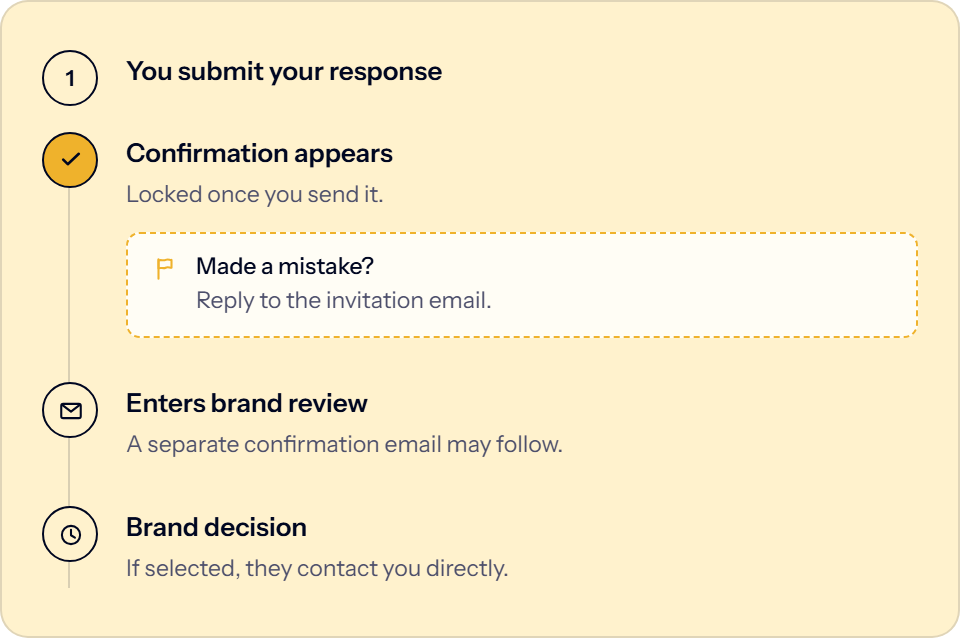
- Viewing your response: You can view your submitted response at any time.
- Notifications & timeline: You may receive a confirmation email upon submission, followed by an acceptance email if selected. Both depend on how the brand configured the Bulletin. Decision timelines vary because Fohr does not set a standard review window.
- Fixing mistakes: To correct an error (such as an incorrect link), reply directly to the Bulletin invitation email. This connects you with the brand’s account manager or Fohr support.
Your Mailing Address and other profile details can be updated at any time in your profile settings, independently of your submitted response.
Troubleshooting
Three questions come up most often when you respond to a Bulletin, and all three have a quick answer:
Continue shows "Mailing Address is required" #
This appears when you’ve typed an address without selecting a suggestion from the dropdown. City, State/Region, and Country all auto-fill from that selection and stay empty otherwise, and none of the three can be edited directly. Start typing your address again in Mailing Address and select a suggestion from the dropdown to fill all four fields at once.
A forwarded link shows a no-access message #
The brand set that Bulletin to private, so only its original recipients can respond. Creating an account doesn’t change it. Ask whoever forwarded it whether the brand made that Bulletin’s link public.
The Bulletin has already closed #
Every Bulletin closes automatically once its response window ends, and opening an old invitation after that shows a message that the opportunity has ended. Select Bulletins in the left sidebar for other open opportunities.
Related articles
Create your Fohr account
Sign up as a Fohr creator, confirm your email, and complete your onboarding details.
Connect your social accounts
Connect Instagram, TikTok, or YouTube to your Fohr profile, and know what to do if a connection breaks.
Your profile
See what your profile shows about you, and what a brand sees when they view it.
Reset your password
Reset your Fohr password from the login page if you’ve forgotten it.